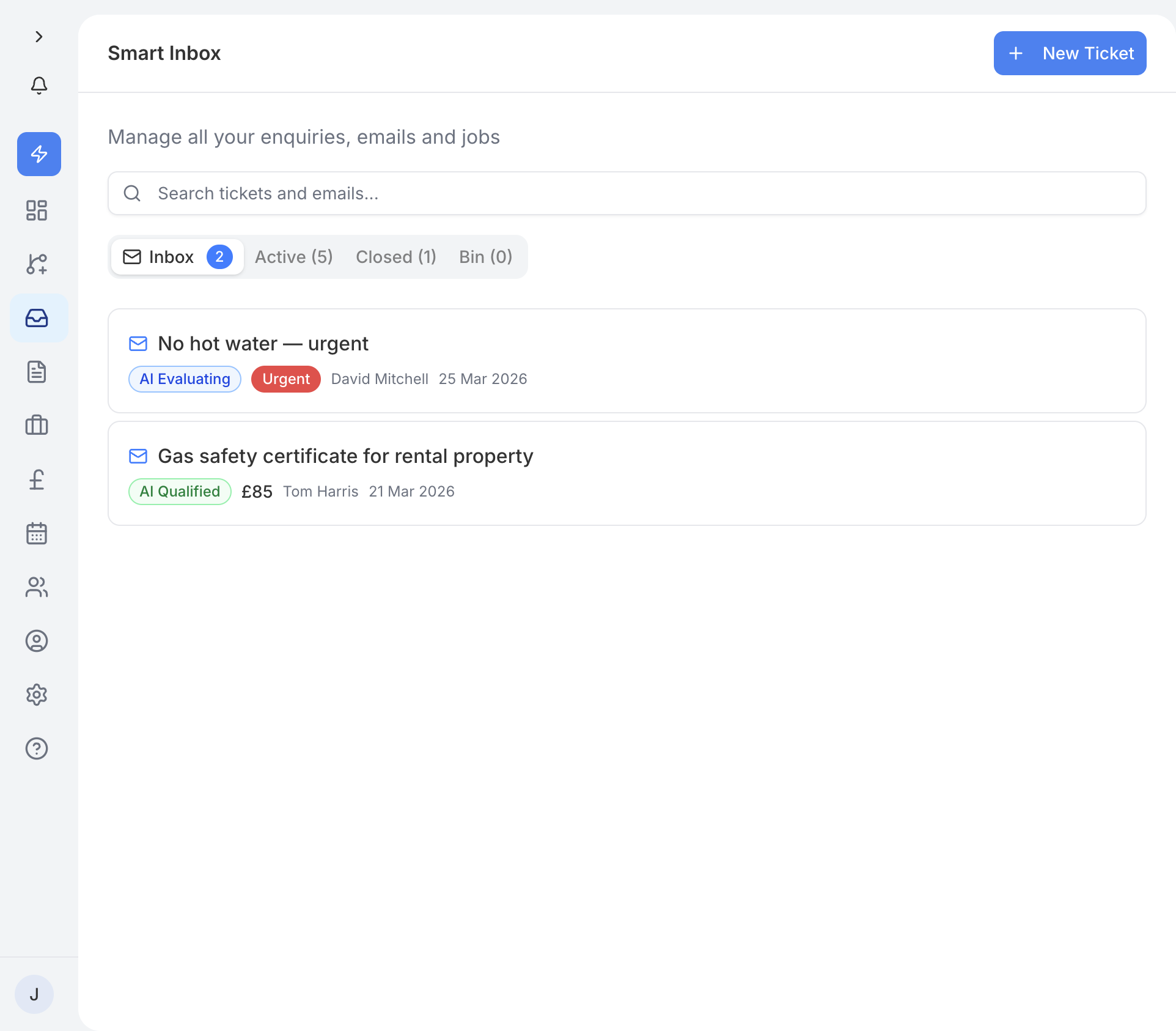
The Smart Inbox is where all your customer enquiries land. Whether someone fills in your public enquiry form or sends you an email, it all ends up here as a ticket. Each ticket keeps the full conversation in one place, from first contact through to getting the work done.
The inbox is conversation-focused. You read messages, reply to your customer, and then head to the Job page to manage quotes, scheduling, and invoicing.
Your inbox is split into five tabs to help you stay organised:
- Inbox - new and unread enquiries that need your attention.
- Active - tickets you are currently working on, such as jobs in progress or quotes awaiting a response.
- Completed - tickets where the job has been finished and the work is done. When you mark a job as complete, the ticket automatically moves here.
- Closed - cancelled tickets or ones you have closed manually. These are kept for your records.
- Bin - tickets you have deleted. They stay here for a while before being permanently removed.
Every ticket has a status that tells you exactly where it sits in your workflow. Here is what each one means:
- New - a fresh enquiry has just come in.
- Prequalifying - traidhand's AI is assessing the enquiry to check if it is a good fit.
- Qualified - the AI has determined this looks like a genuine lead worth pursuing.
- Needs human - the AI could not make a clear decision and needs you to review the enquiry yourself.
- Active - you are actively dealing with this customer.
- Quote draft - you have started drafting a quote but have not sent it yet.
- Quoted - a quote has been sent and you are waiting for the customer to respond.
- Accepted - the customer has accepted your quote.
- Scheduled - the job has been booked in on your calendar.
- Completed - the work is done.
- Invoiced - you have sent an invoice for the completed work.
- Paid - the customer has paid. Job done.
- Cancelled - the enquiry or job was cancelled.
When a customer sends an email to your traidhand email address, it automatically creates a new ticket in your inbox. If they reply to an existing conversation, their message is added to the same ticket rather than creating a duplicate.
Each ticket has an AI summary in the header that gives you a quick overview of the enquiry. This section is collapsible - tap it to expand or collapse it - so it stays out of the way when you are focused on the conversation.
Open any ticket and you will see the full conversation thread - every email, status change, and note in one place. Type your reply in the composer at the bottom and hit send. Your customer receives your response as a normal email, so they do not need to log in to anything.
You can toggle AI assistance on or off in the composer. When it is on, traidhand suggests replies based on the conversation so far. You are always in control of what gets sent.
Each ticket has a single action button at the top:
- View job - if a job already exists for this enquiry, tap this to go straight to the Job page where you can manage quotes, scheduling, invoicing, and more.
- Create job - if no job exists yet, tap this to create one. Once the job is created, you can manage everything from the Job page.
This keeps the inbox simple. Read the conversation, reply to your customer, then head to the Job page to take action.
If a ticket is no longer relevant, you can archive it to keep your inbox tidy. Archived tickets are moved out of your main view but are not deleted - you can always find them later if you need to.
A typical enquiry follows this path:
- Customer sends an enquiry - ticket is created as New.
- The AI pre-qualifies it - status moves to Qualified (or Needs human if it is unclear).
- You reply and start working with the customer - status becomes Active.
- You create a job and send a quote - status moves to Quoted.
- Customer accepts - status becomes Accepted.
- You schedule and complete the job - status moves through Scheduled to Completed.
- You send an invoice - status becomes Invoiced.
- Customer pays - status becomes Paid.
You can also move tickets between statuses manually if you need to skip steps or go back.