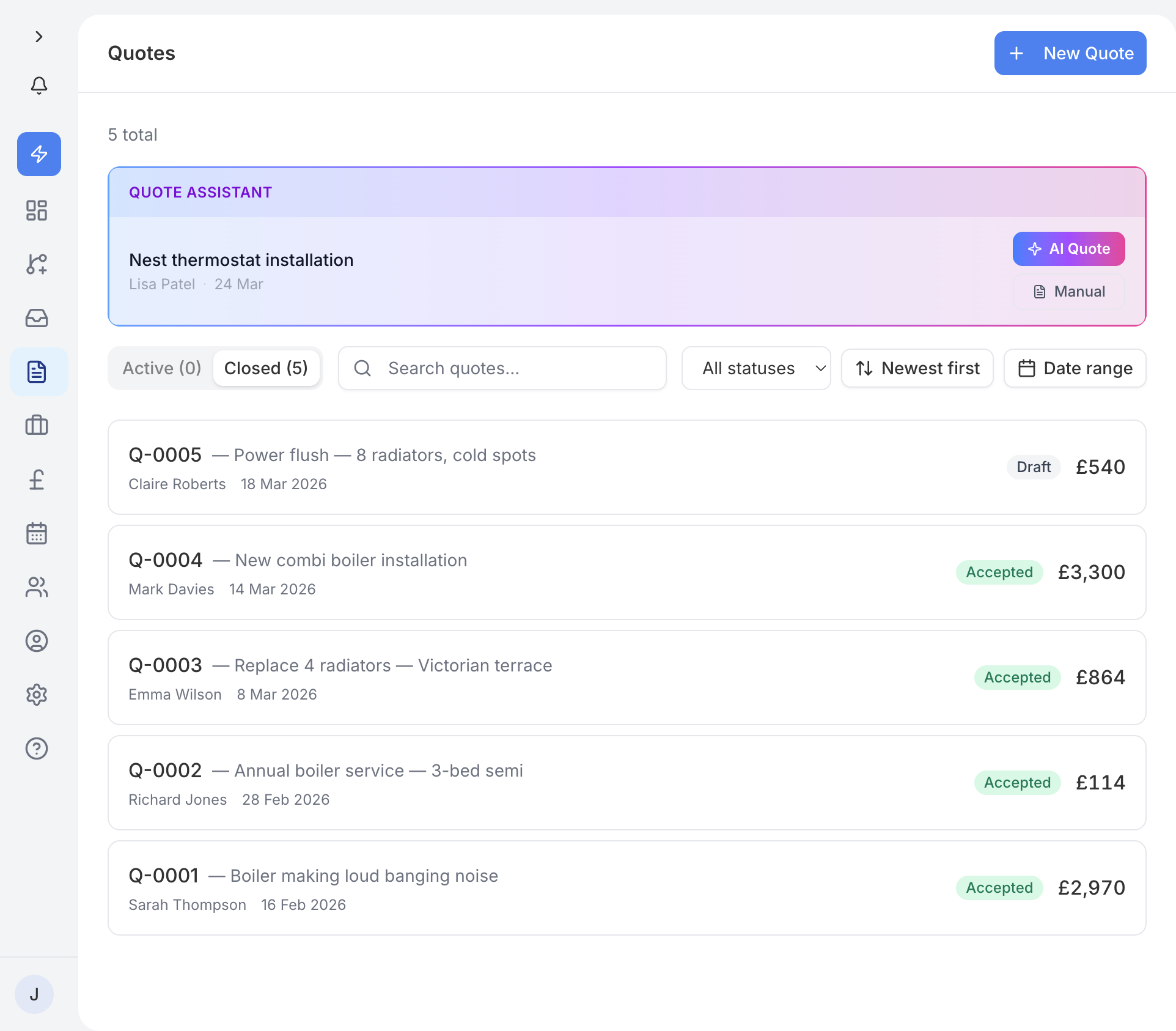
Your quotes are organised into three tabs:
- Active - quotes that are in draft or have been sent and are waiting for a response.
- Accepted - quotes that the customer has accepted.
- Declined - quotes the customer has turned down.
To create a quote, go to Quotes in the sidebar and tap New Quote. You can also create or edit a quote from the Job page by tapping the Edit quote link on the value card.
Select a contact
Start by choosing which customer the quote is for. Use the searchable contact picker to find an existing contact, or tap + New contact to create one on the spot.
Add a title
Every quote needs a title before you can save it. Use something clear like "Kitchen renovation" or "Boiler replacement" so you and your customer know what it covers.
Add line items
Add the services and materials that make up the quote. You can:
- Pick from your services list - select from the services you set up during onboarding or added later in Settings.
- Add custom items - type in a description and price for anything not in your services list.
- Adjust quantities and prices - change the quantity or override the default price for any line item.
All amounts are shown in consistent £X,XXX.00 format throughout the quote.
VAT calculation
If your business is VAT registered, you can set the VAT rate using a dropdown when editing a quote. traidhand calculates VAT on each line item based on the rate you choose. The quote shows a clear breakdown of the subtotal, VAT amount, and total so your customer knows exactly what they are paying.
Line prices
In Settings, you can turn off show prices for each line. With it off, your customer still sees every item and the overall total, but not the quantity or price of each individual line - handy if you would rather not break a job down item by item. This is off by default.
When traidhand creates a quote from an enquiry, it is saved as an AI draft. This means the AI has put together a quote based on what the customer asked for, but you should review it before sending. AI drafts are clearly marked so you always know the difference between something you wrote and something the AI suggested.
A quote can't be sent until it's finished: it needs a customer, at least one line item, and a total above £0. Once it's ready, tap Send in the sidebar. Your customer receives a professional HTML email containing the quote details and a link to view it.
The link takes the customer to a public quote page at a unique URL. This page does not require the customer to log in. From there, they can review the full quote, download it as a PDF, and choose to Accept or Decline it directly. Sharing by WhatsApp sends the same link.
- If they accept - you receive a notification, the quote status updates to Accepted, and a View job button appears so you can move on to scheduling the work. The quote moves to the Accepted tab. If your business takes a deposit, accepting also raises a deposit invoice - see the Deposits article for details.
- If they decline - you receive a notification and the quote moves to the Declined tab. You can follow up with the customer or adjust the quote and re-send it.
Each quote has an activity log that tracks key events with real timestamps:
- AI draft created - when the AI generated a draft quote (if applicable).
- Created - when the quote was manually created.
- Sent - when the quote was emailed to the customer.
- Viewed - when the customer opened the public quote link.
- Accepted - when the customer accepted the quote.
- Declined - when the customer declined it.
This gives you a clear audit trail of what happened and when.
You can archive a quote to remove it from your active list without deleting it. Archived quotes can be restored at any time. There is no delete button - archiving keeps your records intact while keeping your workspace tidy.
If you need to make changes after sending, open the quote, tap Edit in the sidebar, update the line items or prices, and then Re-send it. The customer receives a fresh email with the updated quote. The public quote link always shows the latest version.
Tap Preview (PDF) in the sidebar to open the quote in traidhand's own PDF viewer, where you can download it or close it again. This is handy if a customer asks for a printed copy or you need to keep one for your records. The PDF includes your business name, the customer's details, all line items, and the total, and runs onto extra pages rather than cutting anything off.