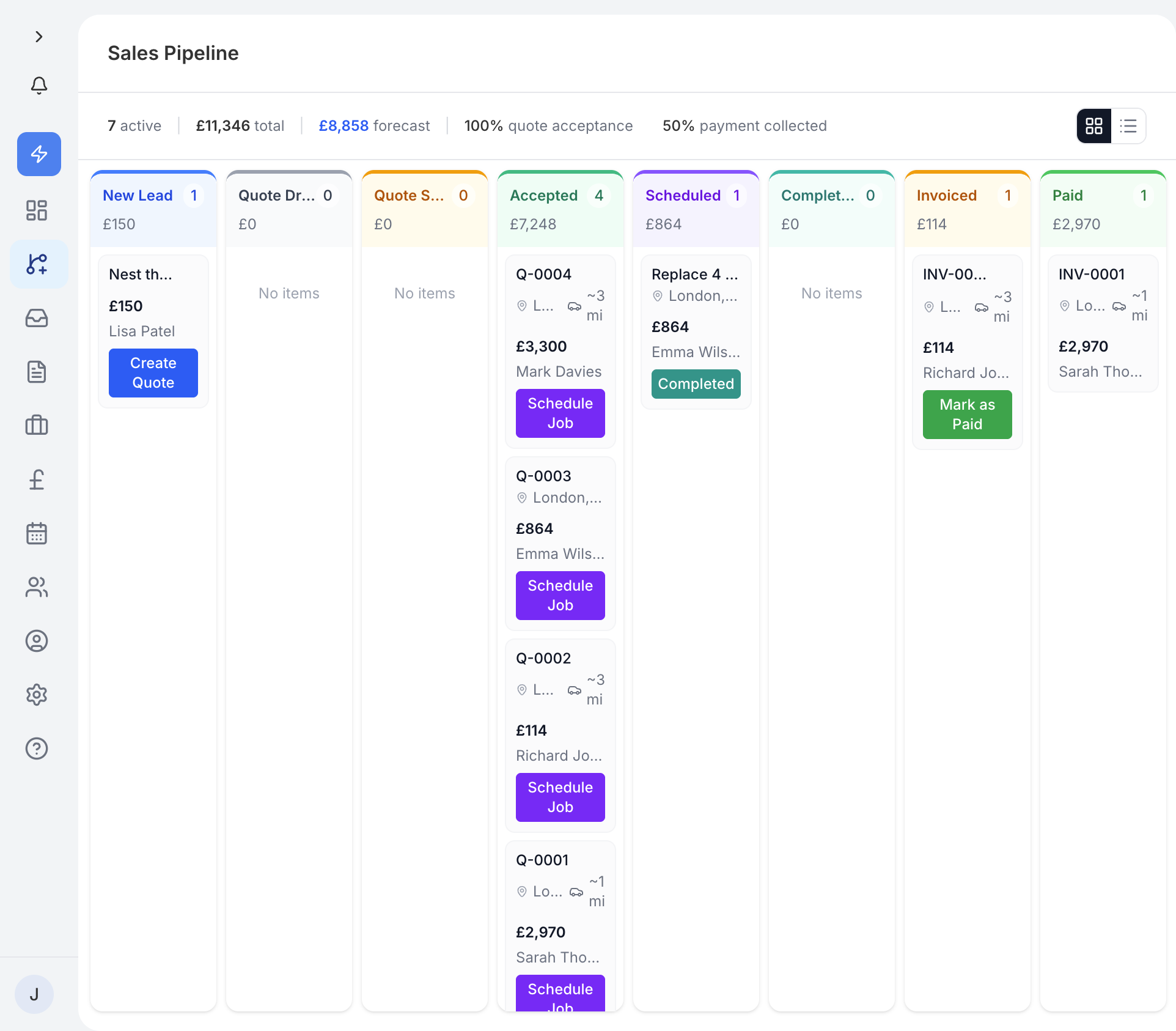
The pipeline gives you a visual overview of where every active enquiry and job sits in your workflow. Each stage represents a step in the journey from first contact through to getting paid. It is the quickest way to see how your business is performing at a glance.
Archived items are excluded from the pipeline, so you only see work that is currently live.
Your pipeline is divided into seven stages:
- New - fresh enquiries that have just come in.
- Quoted - enquiries where you have sent a quote to the customer.
- Accepted - quotes the customer has accepted.
- Scheduled - accepted jobs that have a date booked in.
- Completed - work that has been finished.
- Invoiced - completed jobs where an invoice has been sent.
- Paid - invoices that have been paid in full.
The Paid section starts collapsed by default to keep your view focused on active work. Tap it to expand and see your paid jobs.
On desktop, the pipeline is displayed as a Kanban board. Each stage is a column, and each enquiry or job is shown as a card within its column. You can drag and drop cards between columns to update their status. For example, dragging a card from Quoted to Accepted marks that quote as accepted.
Each card shows the customer name and the deal value, so you can quickly see how much revenue is sitting at each stage.
When you drag a card to a new column, traidhand updates the underlying ticket status automatically. You do not need to open the ticket and change it manually. This keeps your pipeline and your ticket records in sync at all times.
You can switch between Kanban and Table view using the toggle buttons at the top of the page. The table view shows all your pipeline items in a flat list, which can be easier to scan when you have a lot of active deals.
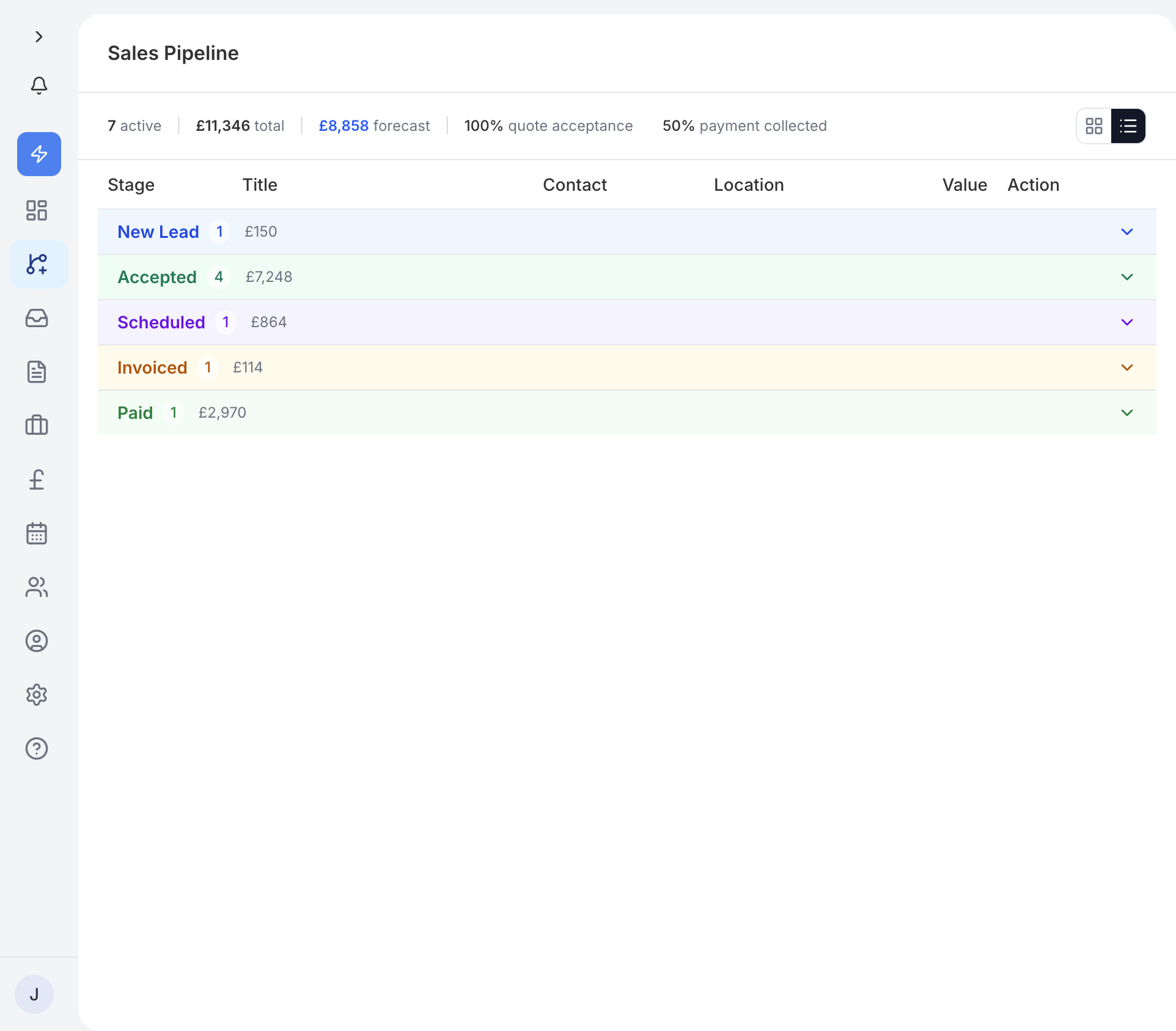
On smaller screens, the pipeline switches to a collapsible list layout. Each stage appears as a section header with its cards listed underneath. Tap a stage header to expand or collapse it. This makes it easy to work through your pipeline on a phone without losing track of where things are.