traidhand can notify you in three ways:
- In-app - a bell icon in the header shows a badge when you have unread notifications. Tap it to see your recent alerts.
- Push notifications - notifications sent directly to your device, even when you are not using traidhand.
- Email - notifications sent to the email address registered on your account.
You can use any combination of these channels, or turn them all on for maximum visibility.
You will receive notifications for key events across your account, including:
- New enquiries - when a customer submits an enquiry through your public profile or via email.
- Quote accepted or declined - when a customer responds to a quote you sent.
- Job updates - status changes and updates on your active jobs.
- Invoice events - when an invoice is viewed, paid, or becomes overdue.
- Pipeline changes - when a ticket moves to a new stage in your pipeline.
- AI prequalification - when traidhand's AI finishes assessing a new lead.
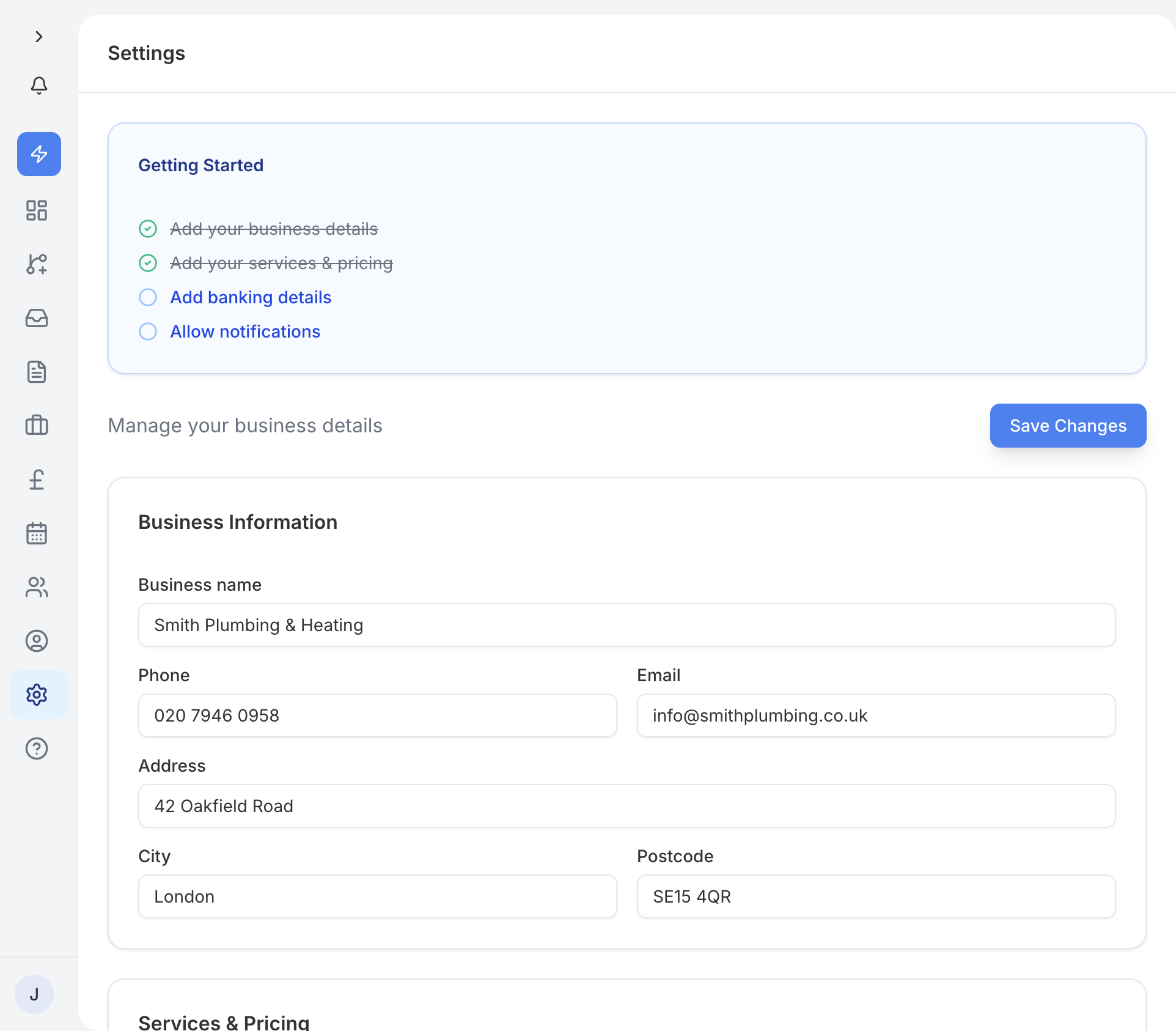
Go to Settings and select Notifications. You will see a list of event types, each with three toggles - one for in-app, one for push, and one for email. You can turn each channel on or off independently for every event type.
For example, you might want push notifications for new enquiries but only in-app alerts for pipeline changes.
To receive push notifications, your browser will ask for permission the first time you enable them. Tap Allow when prompted.
Push notifications on iPhone
If you are using an iPhone, push notifications require an extra step. You need to add traidhand to your home screen first:
- Open traidhand in Safari.
- Tap the Share button (the square with an arrow pointing up).
- Scroll down and tap Add to Home Screen.
- Open traidhand from the new icon on your home screen.
Once you are running traidhand from your home screen, you can enable push notifications in Settings and they will work as expected.