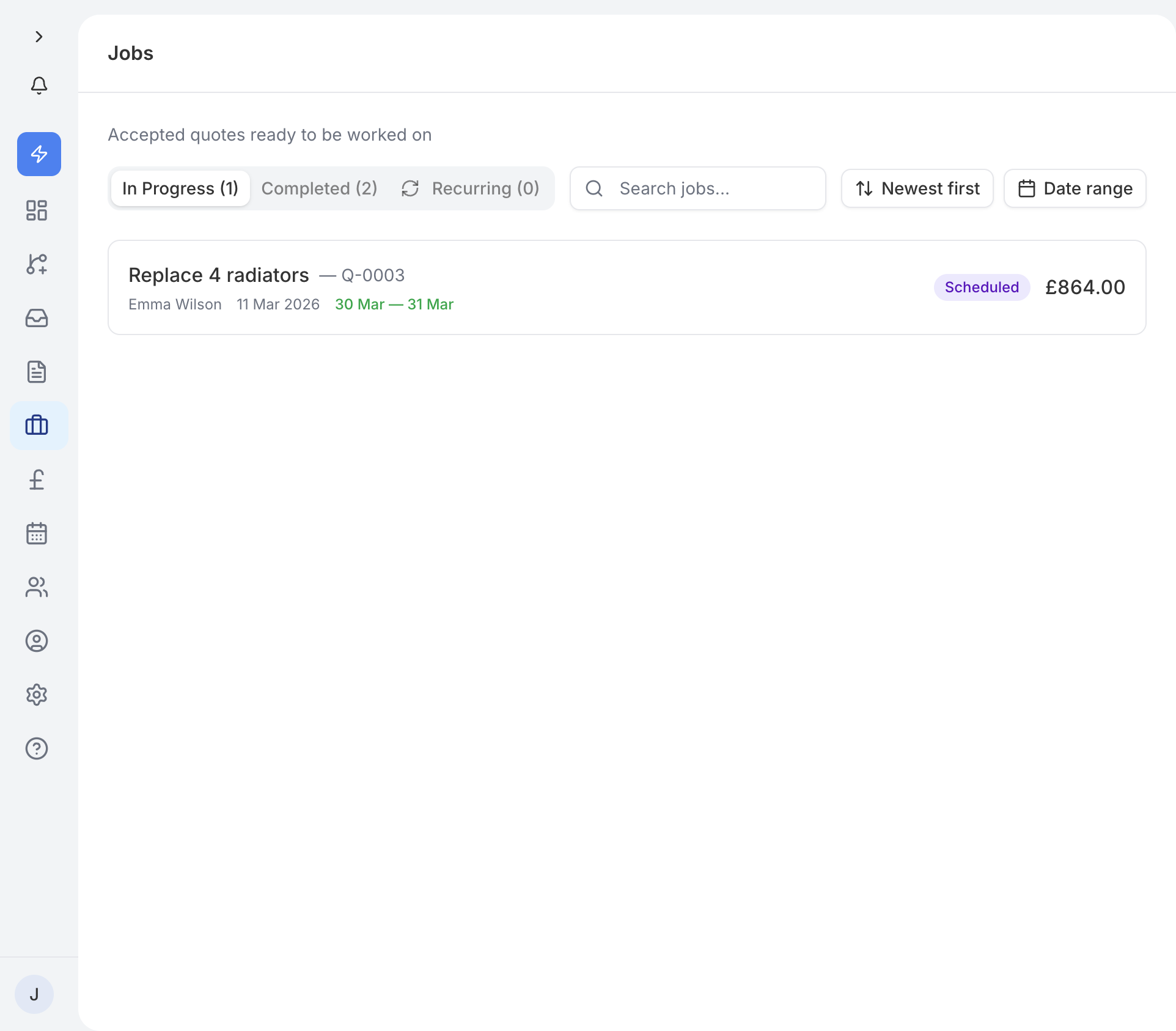
The Jobs page shows all of your active and finished work in two tabs: In Progress and Completed. The In Progress tab is your day-to-day view - it lists every job that has been scheduled but not yet finished. Once you mark a job as complete, it moves to the Completed tab for your records.
You can create a job directly from a ticket in your Smart Inbox by tapping Create job. You can also create one from the Jobs page. The typical flow is:
- A customer sends an enquiry and you create a job from the inbox.
- You build and send a quote from the Job page.
- The customer accepts, and you schedule the work.
This keeps everything linked together - the original enquiry, the quote, and now the job.
The Job page is where you manage everything for a piece of work. It brings together:
- AI Summary - a quick overview of what the customer needs, pulled from the original enquiry.
- Value - shows the quote total with a status badge (AI draft, draft, sent, or accepted) and an Edit quote link that takes you to the quote page.
- Calendar - clickable cards showing your scheduled job date and any site visits, along with their notification status.
Lifecycle tracker
The job page shows the job lifecycle:
Created → Scheduled → In progress → Completed → InvoicedThis gives you a clear picture of where the job stands at a glance. The current stage is highlighted. If your business takes a deposit, a job stays stuck before Scheduled until the deposit is paid - see the Deposits article.
Value card
The value card shows how much the job is worth, based on the linked quote. It displays:
- The quote total in £X,XXX.00 format.
- A status badge showing whether the quote is an AI draft, a draft, sent, or accepted.
- An Edit quote link that takes you to the full quote page where you can make changes.
There is no inline editing on the Job page itself - all quote changes happen on the dedicated quote page.
Calendar section
The calendar section shows clickable cards for:
- Scheduled job - the date and time the work is booked for.
- Site visits - any visits you have arranged before starting the main work.
Each card shows whether the customer has been notified. You can schedule a site visit directly from the Job page using the schedule visit dialog, which includes a Notify customer checkbox so they get an email about the visit.
When the work is done, tap Mark as complete - on a phone this is in the job menu. This moves the job from the In Progress tab to the Completed tab. It also updates the ticket status in your inbox and your pipeline, so your workflow stays accurate without any extra effort. If your business takes a deposit, a job can't be marked complete until the deposit is paid.
Once a job is marked as complete, you can create an invoice directly from the Job page. Tap Create invoice and traidhand generates a draft invoice based on the quote details - customer info, line items, and amounts are all carried across automatically. The invoice is saved as a draft so you can review it before sending. No invoice is sent automatically.
The activity log is always visible at the bottom of the Job page. It shows a timeline of everything that has happened - status changes, quotes sent, visits scheduled, and other key events. You do not need to expand or collapse it.
If a job is no longer relevant, you can archive it to keep your list tidy. Archived jobs are removed from your main view but not deleted. You can restore an archived job at any time if you need to pick it back up.