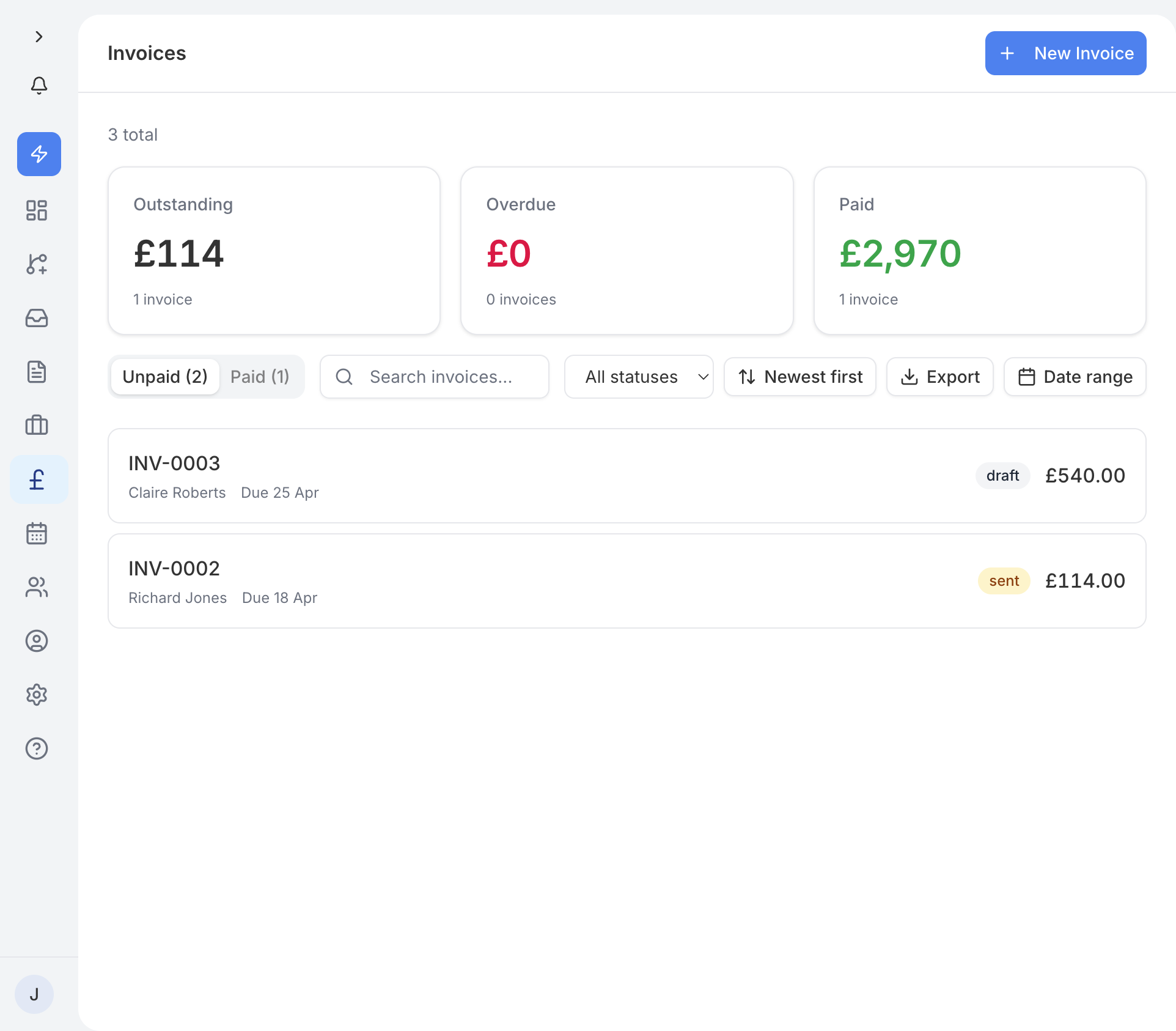
There are two ways to create an invoice in traidhand:
- From a job - when you tap Create invoice on a completed job, traidhand generates a draft invoice based on the quote details. Customer info, line items, and amounts are carried across automatically. The invoice is saved as a draft so you can review and edit it before sending - nothing is sent to the customer automatically.
- Manually - go to Invoices in the sidebar and tap New Invoice. Select a contact, add your line items, and save it as a draft.
Invoice numbers use the prefix set in Settings, followed by a running number. You can change the prefix to your own at any time.
The invoice detail page uses a two-column layout:
- Document card (left) - shows the full invoice with customer details, line items, amounts, and any notes.
- Sidebar (right) - gives you quick access to all the actions you need.
Sidebar actions
The sidebar contains the following actions, depending on the invoice status:
- Mark as paid - appears at the top of the sidebar when the invoice has been sent. Tap this when your customer pays you.
- Send or Re-send - email the invoice to your customer.
- WhatsApp - send a link to the invoice on WhatsApp instead of, or as well as, email.
- Edit - open the invoice for editing.
- Download PDF - open the invoice in traidhand's own PDF viewer, where you can download it or close it again.
- View job - jump to the linked Job page.
- Archive - archive the invoice to remove it from your active list.
When editing an invoice, you can:
- Add line items - include services, materials, and any other charges. Each item has a description, quantity, and unit price.
- Set VAT - if you are VAT registered, VAT is calculated automatically on each line item.
- Show line prices - in Settings you can turn off showing prices for each line. With it off, your customer sees each item and the total, but not the quantity or price of each individual line. This is off by default.
- Choose a due date - set when you expect payment. This is used to track overdue invoices.
- Add notes - include payment instructions, your bank details, or any other information the customer needs.
- Pick a contact - use the searchable contact picker to choose a customer, or tap + New contact to add one.
Tap Send in the sidebar and your customer receives an email with the invoice details and a PDF attachment. The email is clear and professional, showing the total amount due and the payment deadline. You can also tap WhatsApp to send a link to the invoice instead, so a customer without email can still view it and download the PDF.
Once you've added your bank details in Settings > Payments, every invoice tells your customer to use the invoice number as their payment reference: "Please use reference TH-0003". It's on the PDF under your bank details, on the online invoice, in the email, and in the WhatsApp message. Without bank details there's no account to pay into, so nothing is said.
Ask them to use it. A bank transfer that carries the invoice number matches straight onto the right invoice in Xero, so you or your accountant aren't guessing which job a payment belongs to.
Your invoices page is split into two tabs:
- Unpaid - invoices that are still waiting for payment. Overdue invoices are highlighted so you can spot them quickly.
- Paid - invoices that have been settled. These are kept for your records.
When a customer pays you, open the invoice and tap Mark as paid in the sidebar. You will be asked to select the payment method:
- Bank transfer - the customer paid directly into your bank account.
- Cash - the customer paid in cash.
This keeps your records accurate and helps you track how your customers prefer to pay.
Marking an invoice as paid doesn't send a payment to Xero. If the invoice isn't in Xero yet it's sent there, and you match the payment against your bank feed in Xero.
If a customer has paid some but not all of an invoice - for example a part payment reconciled in Xero, or a stage of a job paid in stages - the invoice shows as Part paid, with what's been paid and the balance left. Outstanding figures across traidhand count the balance, not the full total. Jobs paid in stages are explained in the Deposits article.
Each invoice has an activity log that tracks key events with real timestamps:
- Created - when the invoice was generated.
- Sent - when the invoice was emailed to the customer.
- Viewed - when the customer opened the invoice.
- Paid - when the invoice was marked as paid.
This gives you a full audit trail for every invoice.
You can archive an invoice to remove it from your active list without deleting it. Archived invoices can be restored at any time. This keeps your records intact while keeping your workspace tidy.
If an invoice goes past its due date, traidhand makes it easy to follow up. Open the overdue invoice and tap the Send Reminder button. This sends a polite reminder email to your customer with the outstanding amount and a prompt to pay. One tap and it is done - no need to write the email yourself.
traidhand prevents you from accidentally creating duplicate invoices for the same job. If a final invoice already exists for a job, you will not be able to create another one from that job. A deposit invoice, where your business takes one, is separate from this and doesn't count - see the Deposits article.
Need to share your invoice data with your accountant or import it into another system? Go to the invoices page and tap Export to CSV. This downloads a spreadsheet file containing all your invoice records, which you can open in Excel, Google Sheets, or any similar tool.