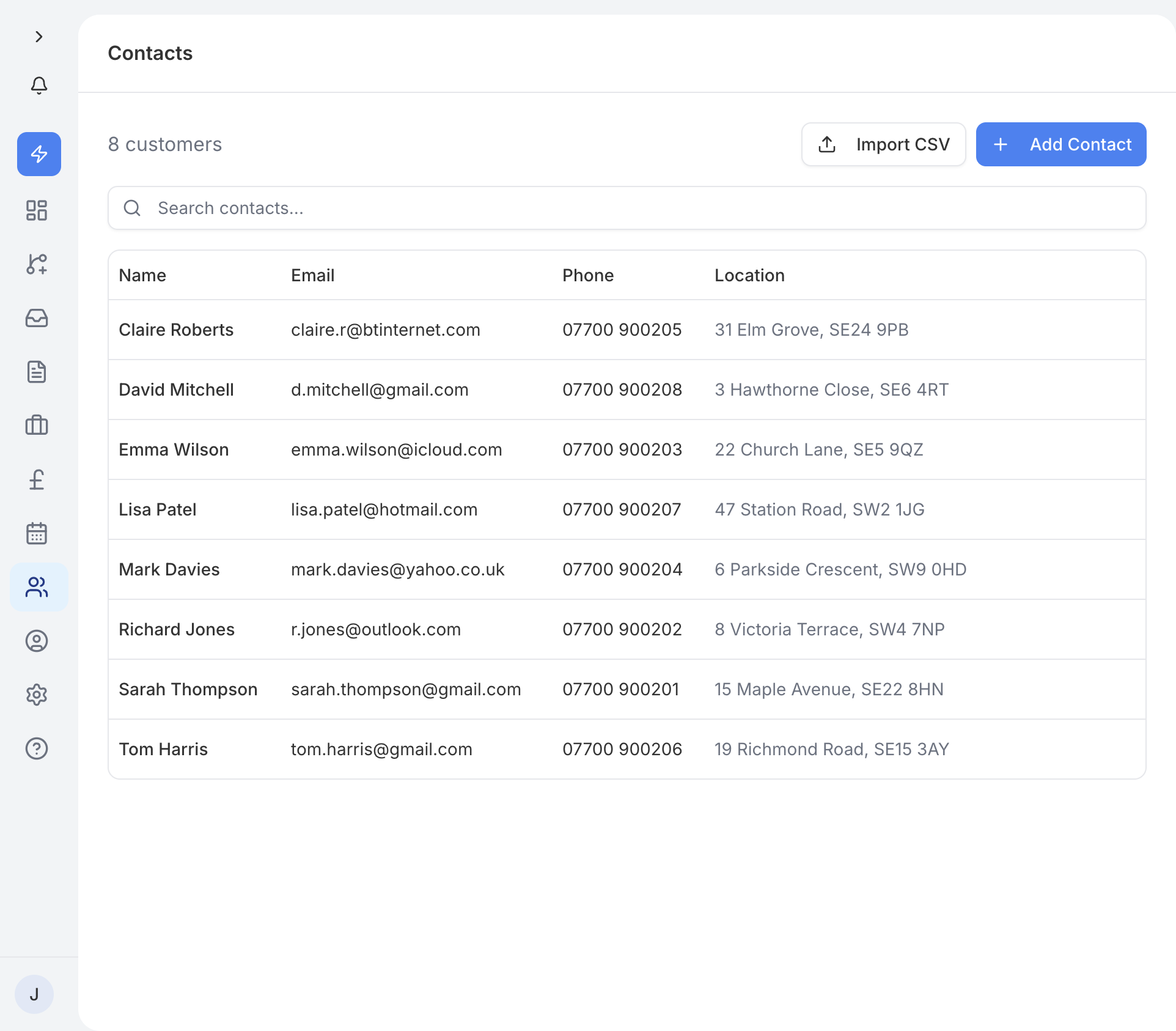
If you already have a list of customers in a spreadsheet, you can bring them into traidhand in one go using a CSV file.
Starting an import
Go to Contacts in the sidebar and tap the Import CSV button. You can either click to browse for a file or drag and drop your CSV file straight onto the upload area.
Mapping your columns
Once your file is uploaded, traidhand shows you a column mapping step. This is where you match the columns in your CSV to traidhand fields such as first name, last name, email, and phone number.
If your spreadsheet has a single "Full Name" column instead of separate first and last name columns, traidhand will automatically split it into first name and last name for you.
Duplicate detection
traidhand checks for duplicates by looking at email addresses and phone numbers. If a contact in your CSV matches an existing contact, it will be skipped rather than creating a duplicate entry.
Import summary
When the import finishes, you will see a summary showing:
- Imported - how many new contacts were added successfully.
- Skipped - how many were skipped because they matched an existing contact.
- Failed - how many rows could not be imported, for example due to missing required fields.
To download a copy of your invoices as a spreadsheet, go to Invoices in the sidebar and tap the Export button.
traidhand generates a CSV file containing the following columns:
- Invoice number
- Status (draft, sent, paid, overdue, etc.)
- Customer name
- Subtotal
- VAT
- Total
The filename includes the current date so you can keep track of when each export was created.