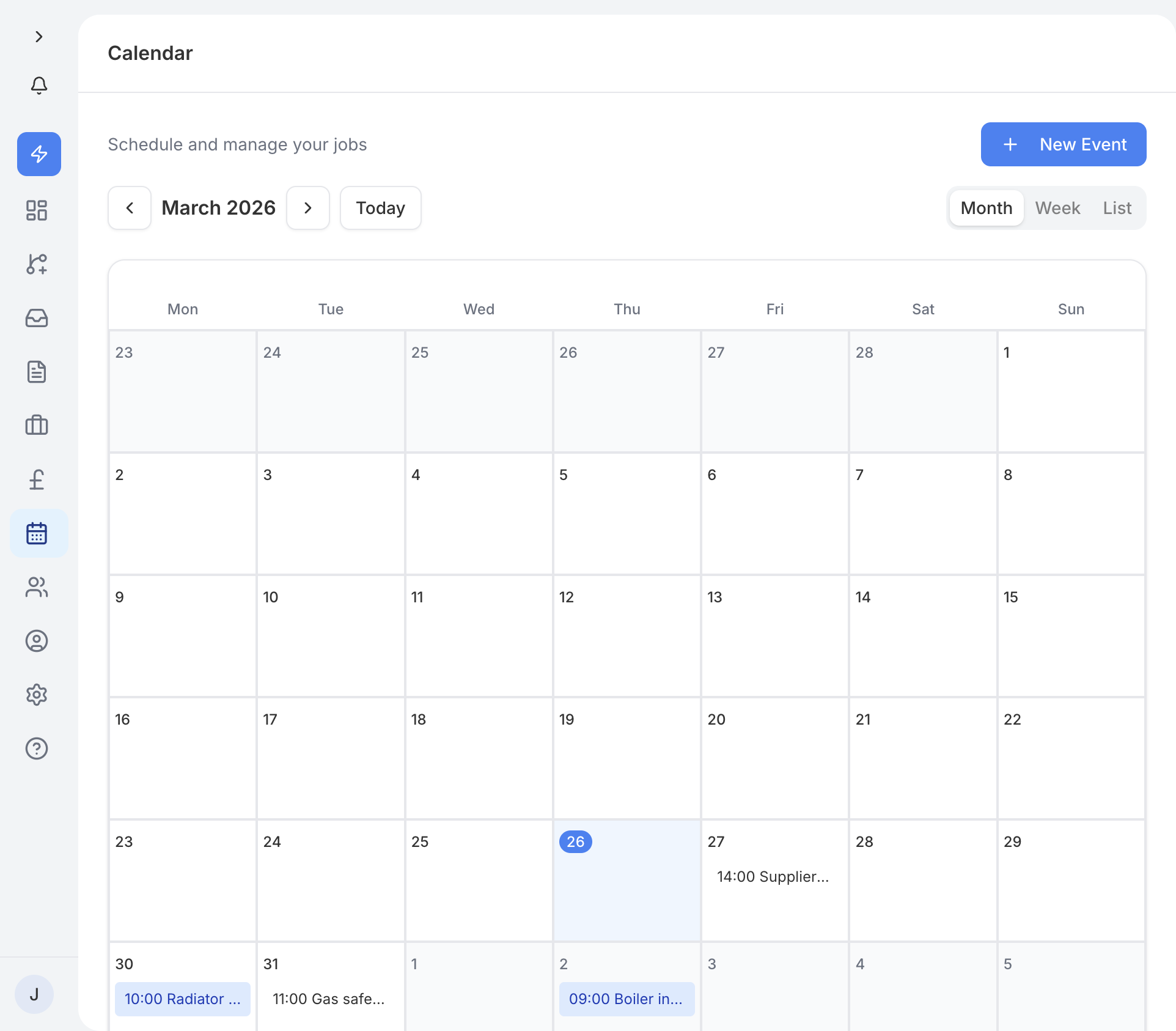
The calendar offers three views so you can look at your schedule at whatever level of detail you need:
- Day view - shows a single day broken into hourly slots. Useful when you want to see exactly what is coming up today.
- Week view - displays a full week with events laid out across the days. This is the default view on both desktop and mobile, giving you a good overview of the week ahead.
- Month view - a broader look at the entire month, handy for spotting busy periods or gaps in your schedule.
Switch between views using the buttons at the top of the calendar.
To add an event, tap the New Event button. A mini calendar picker lets you choose the date, then fill in the title, time, and any notes. Calendar events are useful for reminders, supplier meetings, or anything else you need to keep track of. Open an event and tap Delete to remove it again.
The main way to schedule work is from the Job page. When you schedule a job or a site visit, a calendar event is created automatically. This means your calendar always reflects your committed work without you needing to enter anything twice.
Site visit cards
Site visits scheduled from the Job page appear as distinct cards on your calendar. Each card shows the customer name, address, and whether the customer has been notified about the visit. You can tap a site visit card to go straight to the linked job.
Sending a site visit to the customer
Booking a visit and sending it are one trip. Wherever you book one - the calendar, the job page or an enquiry in the inbox - the moment you save it the same window asks how to send it: WhatsApp, email, or not now. WhatsApp opens with the message ready and the link in it; email sends the details with a calendar invitation attached. Not now leaves the visit booked and unsent, and you can send it any time by opening it again.
The customer gets a page showing the time and what the visit is for, with Accept this time, Suggest a different time and Decline. Their answer comes back as a status on the visit - customer notified, customer accepted, customer suggesting new dates or customer declined - and you get a notification. Once they accept, the next step is quoting the work.
If the customer has no email address, only WhatsApp is offered. If you move a visit the customer has already been sent, their answer is cleared and the old link stops asking for one - the window goes straight to the send step so the new time can go out.
Tapping a notification about a visit opens that visit, not the month it falls in.
Deposits never hold up a site visit. It is the appointment to price the work, not the booking for the job itself.
Job events
Scheduled jobs also appear as cards on the calendar. Tap any job event to see the full details or jump to the Job page.
On smaller screens, the week view switches to a vertical stacked layout. Each day is shown as a section with its events listed underneath. This makes it easier to scroll through your week without squinting at a cramped grid.
If you have set up a recurring job, the calendar shows ghost events for future dates. These appear faded with a dashed border, so you can tell them apart from confirmed one-off events at a glance. They give you a preview of what your schedule will look like as the recurring work continues.
Recurring job events also have an indigo left border to make them easy to spot when scanning the calendar quickly.